Best Of
Re: Looking under the hood
Great photos, all - who doesn't like stereo guts photos - but man this thread title is GNARLY.

 Toolfan66
3 ·
Re: 3 pair of 12AU7 and 1 pair of 5814 - tested good
Legit!!
Send them, you got my digits, I almost have enough to use my super nice tube caddy
Thanks guys! 😀
Send them, you got my digits, I almost have enough to use my super nice tube caddy
Thanks guys! 😀
 pitdogg2
1 ·


Re: What did you do to your stereo rig today?
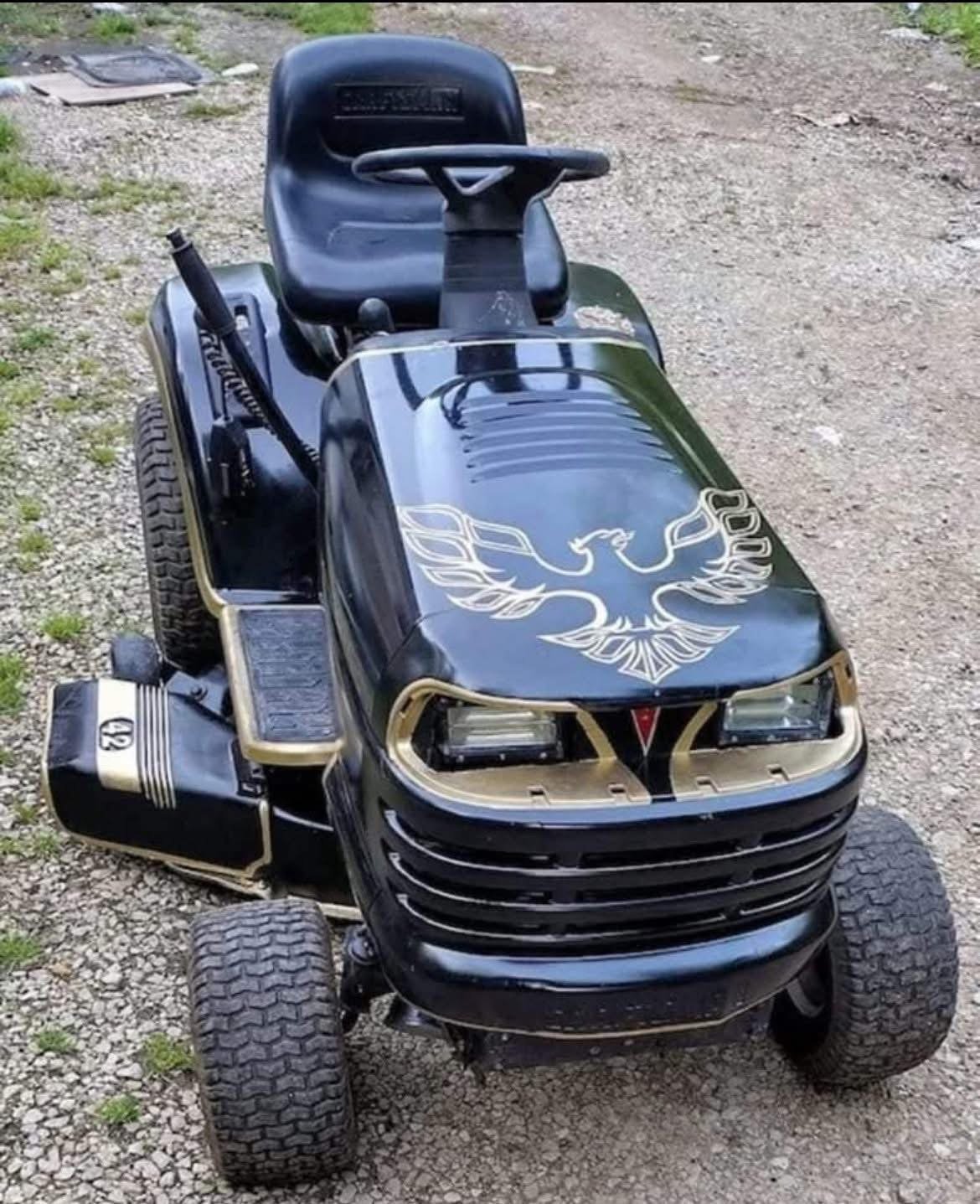
I purchased this a few weeks ago from Zach here on the forum.
I was surprized the power supply didn’t have a face plate like the Phono Pre.
Well, I had to change that, 😁
I haven’t installed it yet, but you get the idea.. 😎


At least now they look like they belong together..😎 IMO, this is how they should be done..
Toolfan66
6 ·
Re: George Foreman RIP
Those GF grills are nice. I think mine must be 25 years or so old by now.....still operates like a champ. Might have to bust it out again this weekend in honor of Mr. Foreman.
Tom
Tom
 treitz3
4 ·
Re: Favorite Line from a Song
Way too many.
I enjoy 50's to early 80's rock, pop, jazz, blues & country mostly. Blues and jazz up to today. Also like some 30's-40's big bands, swing (Goodman, Dorsey...)
Jazz lyrics strike me the most, I guess.
These two stick out.
 https://www.youtube.com/watch?v=DXg6UB9Qk0o&list=RDDXg6UB9Qk0o&start_radio=1
 https://www.youtube.com/watch?v=EYxoAJ3Boyc&list=RDEYxoAJ3Boyc&start_radio=1
EDIT: Favorite line then. Cry Me a River | Fever
I enjoy 50's to early 80's rock, pop, jazz, blues & country mostly. Blues and jazz up to today. Also like some 30's-40's big bands, swing (Goodman, Dorsey...)
Jazz lyrics strike me the most, I guess.
These two stick out.
https://www.youtube.com/watch?v=DXg6UB9Qk0o&list=RDDXg6UB9Qk0o&start_radio=1https://www.youtube.com/watch?v=EYxoAJ3Boyc&list=RDEYxoAJ3Boyc&start_radio=1EDIT: Favorite line then. Cry Me a River | Fever
 aprazer402
1 ·


Re: Favorite Line from a Song
She ain't exactly pretty
Ain't exactly small
42-39-56
You could say she's got it all
Ain't no fairy story, ain't no skin-and-bones
But you give all you got, weighin' in at 19 stone
Ain't exactly small
42-39-56
You could say she's got it all
Ain't no fairy story, ain't no skin-and-bones
But you give all you got, weighin' in at 19 stone
 Geoff4rfc
4 ·